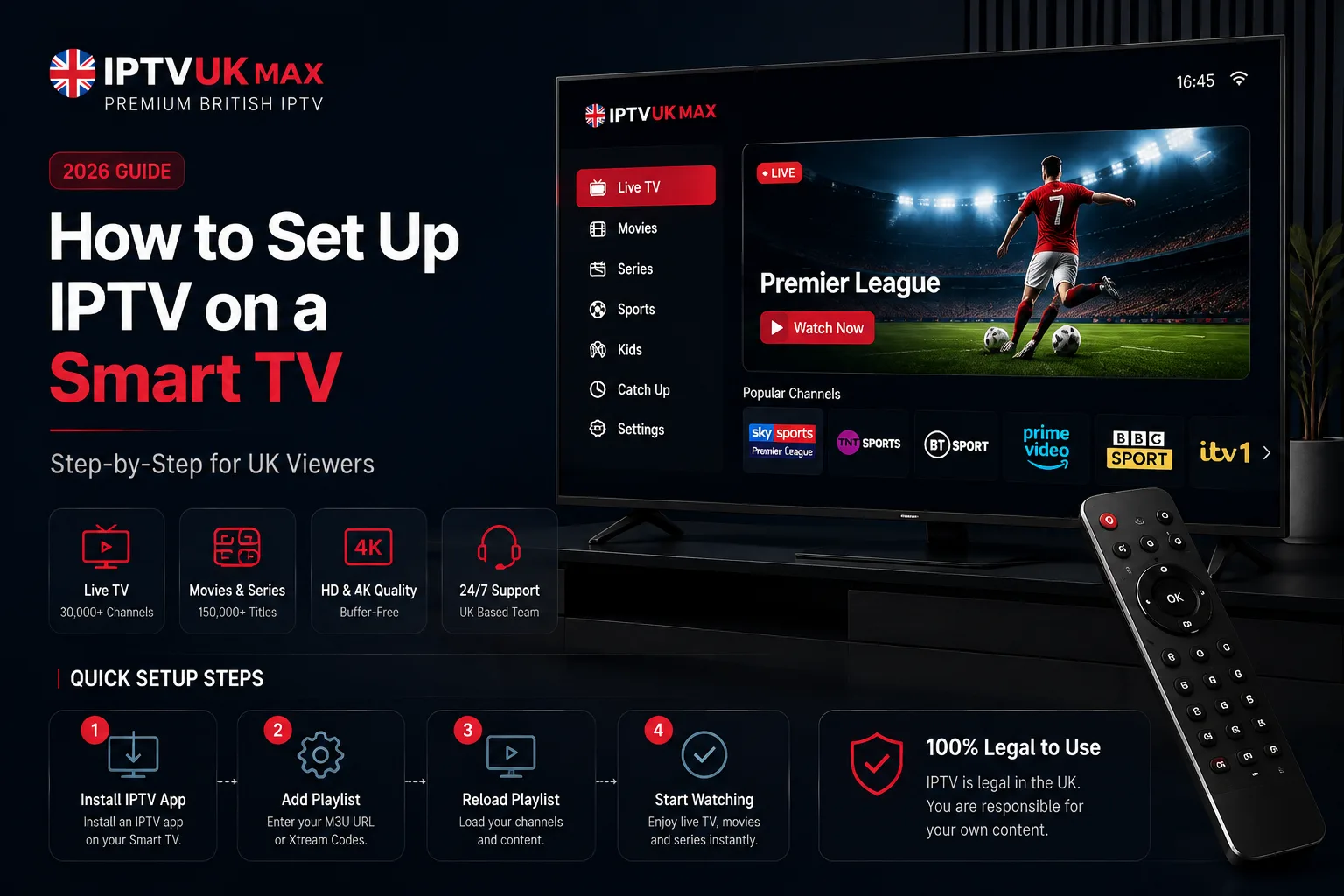
No Firestick, no extra box — here's exactly how to install and run IPTV UK directly on a Samsung, LG or Sony Smart TV in a few minutes.
A Smart TV is the simplest way to run IPTV UK — no Firestick, no extra remote, nothing plugged into the back of the TV. If your Samsung, LG or Sony TV is already connected to Wi-Fi, you can be watching live channels in a few minutes. Here's exactly how.
Before you start
- An active IPTV subscription (your login details arrive by email instantly)
- A Smart TV connected to Wi-Fi or Ethernet, with access to its built-in app store
- A stable internet connection — 15 Mbps or higher for 4K
Step 1 — Open your TV's app store
On Samsung TVs this is the Samsung Apps / Smart Hub store, on LG it's the LG Content Store, and on Sony (Android TV / Google TV) it's the Google Play Store. Navigate there from your home screen.
Step 2 — Install an IPTV player app
Search for 'IPTV Smarters Pro' — it's available on Samsung, LG and Sony/Android TV app stores and supports Xtream Codes login, the EPG TV guide and catch-up. Install it like any other app.
Step 3 — Enter your login details
Open the app, choose 'Login with Xtream Codes API', then enter the username, password and server URL from your activation email. The channel list — 30,000+ channels and the full EPG — will populate automatically.
Step 4 — Start watching
That's it. Pin your favourite channels for one-click access from the home screen, and you're set up — usually in under five minutes from start to finish.
Samsung vs LG vs Sony — what's different?
- Samsung — widest app selection via Smart Hub, straightforward Xtream Codes login
- LG (webOS) — Content Store install is just as quick, though some older models need a manual sideload
- Sony / Android TV — installs straight from Google Play, and also supports Kodi if you prefer it
- Very old Smart TVs without an app store may need a Firestick or Android box instead — see our best devices for IPTV UK ranking
Buffering on a Smart TV? Try this
- Use 5GHz Wi-Fi instead of 2.4GHz, or connect via Ethernet for the most stable signal
- Clear the app's cache from your TV's app management settings
- Close other background apps running on the TV
- Enable the built-in VPN to stop ISP throttling during peak hours — see our full buffering guide for more fixes
Which Smart TVs support IPTV apps?
Samsung (Tizen), LG (webOS) and Sony/Android TV models all have app stores that support IPTV player apps like IPTV Smarters Pro. Very old Smart TVs without a modern app store usually need a Firestick instead.
Do I need to download anything extra for IPTV on a Smart TV?
Just one app — an IPTV player such as IPTV Smarters Pro from your TV's built-in app store. No extra box, remote or cabling is required.
Why does IPTV buffer on my Smart TV?
Most Smart TV buffering comes down to Wi-Fi signal strength rather than your provider. Switching to 5GHz Wi-Fi or Ethernet, clearing the app cache, and enabling the built-in VPN resolve the vast majority of cases.
Can I use IPTV on an older Smart TV?
If it has an app store, yes. If it's too old to install apps, a cheap Fire TV Stick plugged into the HDMI port gives you the same experience — see our device ranking for options.
Get 30,000+ UK channels from £4/month
Instant activation, zero buffering, 7-day money-back guarantee.