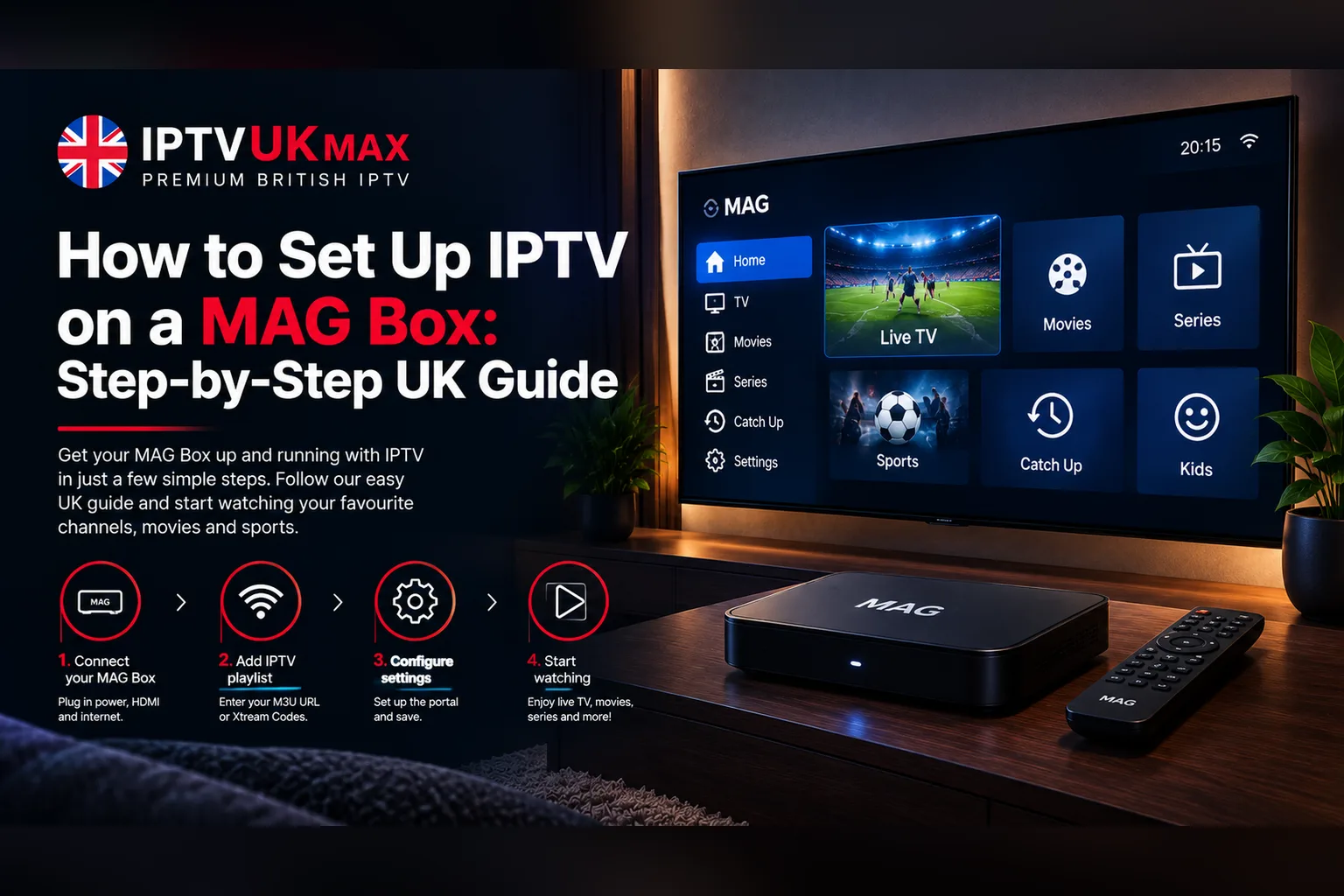
How to connect a MAG box, find its MAC address, add your portal URL and get live TV and the TV guide working — plus fixes for the most common MAG box problems.
A MAG box is the closest IPTV gets to a traditional set-top box. There are no apps to install and no logins to type on a remote — you plug it in, add one web address, and it boots straight into live TV with a full TV guide. That simplicity is why MAG boxes are popular with people who just want television that works. This guide walks through the setup on MAG 322, 324, 424 and 524 boxes and covers the problems people most often hit.
How a MAG box connects to your IPTV service
MAG boxes do not use a username and password. Instead, each box has a unique MAC address, and your provider links your subscription to that address. The box then connects to a portal — a web address your provider gives you — which supplies the channel list, the TV guide and the menus. So setup comes down to two things: telling your provider the box's MAC address, and entering the portal address on the box.
What you need
- A MAG box (MAG 322, 324, 424, 524 or similar), its remote and power supply
- An HDMI cable to the TV, and ideally an Ethernet cable to the router
- Your portal URL from your provider
- A broadband connection of 10 Mbps for HD, or 25 Mbps for 4K on a 4K-capable model
Step 1: Find your MAC address
The MAC address is printed on the sticker underneath the box and on the box it came in. It is twelve characters in pairs, and on MAG boxes it starts with 00:1A:79 — for example 00:1A:79:XX:XX:XX. You can also find it on screen: open Settings, then the device or system information page.
Send the MAC address to your provider when you order or start a trial. Double-check it before sending: a single wrong character is the most common reason a MAG box will not connect.
MAG box ready?
Get your portal URL in minutes
Start a free 24-hour trial with your MAC address and test every channel and the TV guide on your box before you choose a plan.
Step 2: Connect the box
- Connect the box to your TV with the HDMI cable
- Plug an Ethernet cable from the box into your router — MAG boxes are at their best on a cable, and some models have no built-in Wi-Fi at all
- Connect the power supply and switch the TV to the right HDMI input
- Wait for the box to start; you will see the MAG menu or a portal loading screen
Step 3: Add the portal URL
Menu names vary slightly between models and firmware versions, but the route is the same on all of them:
- Press Setup (or Settings) on the remote, or choose Settings from the main menu
- Open System settings, then Servers, then Portals
- In Portal 1 name, type any name — for example IPTVUKmax
- In Portal 1 URL, type the portal address exactly as your provider sent it, including http:// and the trailing slash
- Save the settings (on most models the Save option is at the bottom of the page, or on the F-key shown on screen)
- Go back to the main settings menu and choose Restart portal, or switch the box off and on
When the box restarts, it loads the portal and opens live TV. The first load can take a minute while the channel list and guide download.
Step 4: Use the TV guide and catch-up
On a MAG box the TV guide comes from the portal itself, so there is nothing extra to add. Press the EPG or Guide button on the remote to open it. Channels that support catch-up are marked in the guide; select a programme that has already aired to play it from the start. If the guide is blank or the times are wrong, our TV guide and catch-up guide has the fixes — on a MAG box, wrong times are almost always the time zone setting.
Common MAG box problems and fixes
- “Loading portal…” then nothing — check the portal URL for typos, especially the slash at the end, and make sure the box has internet (Settings → Network → Network status)
- “STB blocked” or “Your STB is not authorised” — the MAC address linked to your account does not match the box. Check it against the sticker and send it to support again
- Guide times are an hour out — set the time zone to London in the box's settings, and make sure the time source (NTP) is enabled
- Picture freezes in the evening — try a wired connection if you are on Wi-Fi, and see our buffering fixes
- Remote does not respond — replace the batteries and point it directly at the front of the box; MAG remotes are infrared, not Bluetooth
If a MAG box will not connect, check the MAC address first and the portal URL second. Between them, they cause almost every failed setup.
Is a MAG box the right device for you?
A MAG box suits anyone who wants a dedicated TV box with a remote and a guide, and nothing else. If you would rather have apps alongside your TV — Netflix, YouTube and so on — a Firestick or Apple TV is more flexible. Our best devices for IPTV guide compares them, and our Firestick and Apple TV, iPhone and iPad guides cover setting those up. You can see the full line-up on our channels page.
How do I set up IPTV on a MAG box?
Send your provider the box's MAC address, then on the box go to Settings → System settings → Servers → Portals, enter the portal URL your provider gives you as Portal 1, save, and restart the portal.
Where do I find the MAC address on a MAG box?
On the sticker underneath the box and on its packaging. It starts with 00:1A:79 on MAG boxes. You can also find it in the device information page in Settings.
Why does my MAG box say STB blocked?
The MAC address on your account does not match the box. Check every character against the sticker and send it to support again so they can update your account.
Does a MAG box need Wi-Fi?
It needs an internet connection, and Ethernet is best. Some models have built-in Wi-Fi and others need a cable or a compatible Wi-Fi adapter.
Can I use a MAG box and another device on one subscription?
Yes, if your plan covers the number of screens you watch on at the same time. You can choose 1 to 4 devices on our pricing page.
Get 34,000+ UK channels from £4/month
Instant activation, zero buffering, 7-day money-back guarantee.