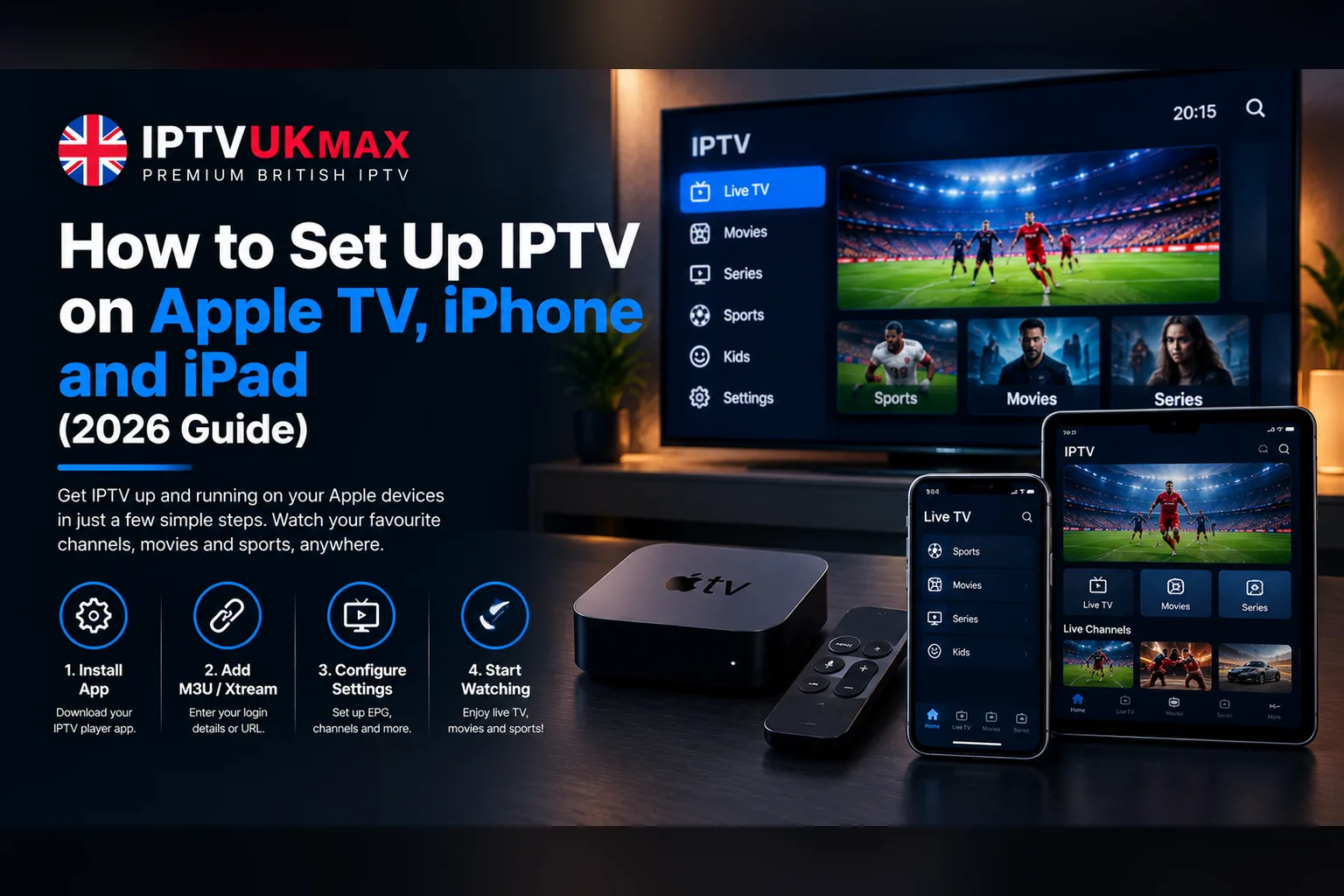
Which app to use on Apple devices, how to log in with your IPTV details, and how to get the TV guide, catch-up and a smooth picture on Apple TV, iPhone and iPad.
Apple devices make good IPTV players. Apple TV is quick, quiet and sits neatly under the TV; iPhone and iPad are ideal for watching in another room or on the move. What they do not have is a built-in IPTV player, so the first step on every Apple device is the same: install an IPTV app from the App Store, then log in with the details your provider sends you. This guide covers both steps on Apple TV, iPhone and iPad, plus the settings that make the biggest difference to picture quality.
What you need before you start
- An Apple TV (Apple TV HD or Apple TV 4K) on a recent version of tvOS, or an iPhone or iPad on a recent version of iOS or iPadOS
- Your IPTV login — usually a username, password and server URL (Xtream Codes), or an M3U playlist link
- A stable connection: 10 Mbps for HD and 25 Mbps for 4K, measured on the device you will watch on
- Your Apple ID, to download the app
If you do not have a subscription yet, you can get a set of login details with a free 24-hour trial and follow along with this guide.
Which IPTV app to use on Apple devices
Any IPTV player that accepts an Xtream Codes login or an M3U link will work. The most common choices are:
- IPTV Smarters — free, and available for iPhone, iPad and Apple TV (on the App Store it is listed as Smarters Player Lite). The same app we cover in our IPTV Smarters Pro setup guide.
- GSE Smart IPTV — available on iPhone, iPad and Apple TV, with plenty of playback options.
- iPlayTV — an Apple TV app with a clean, TV-style guide. It is a paid app.
App names and prices on the App Store change from time to time, so search for the name rather than following an old link. Whichever you choose, the login details are the same.
How to set up IPTV on Apple TV
- On the Apple TV home screen, open the App Store
- Search for your chosen app (for example, Smarters Player Lite) and select Get
- Open the app and choose the Xtream Codes login (sometimes called Login with Xtream Codes API)
- Enter any name for the profile, then your username, password and server URL exactly as they were sent — including http:// and any port number
- Select Add User or Log In, and let the app load the channels, films, series and TV guide
- Open Live TV and pick a channel to check playback
Typing a long server URL with the Siri Remote is slow. Most apps let you use the Apple TV Remote in Control Centre on your iPhone instead — swipe down from the top-right of your iPhone, tap the remote icon, and type with the phone's keyboard.
Try it first
Test it on your Apple TV for free
Get a 24-hour trial login in minutes and check every channel, the TV guide and 4K playback on your own device before you pay.
How to set up IPTV on iPhone and iPad
- Open the App Store and search for your chosen IPTV app
- Tap Get, then open the app once it has installed
- Choose the Xtream Codes login, or Add Playlist if you have an M3U link
- Enter your username, password and server URL, then tap Add User or Log In
- Wait for the channel list and guide to load, then open Live TV
If the app asks for permission to find devices on your local network, allow it — that is what lets it send video to an Apple TV or AirPlay-compatible TV.
Watching from your iPhone on the TV with AirPlay
If you only have an iPhone or iPad and an AirPlay-compatible TV, you can send the picture to the big screen. Start a channel in the app, then tap the AirPlay icon in the player (a rectangle with a triangle) and choose your Apple TV or TV. For long viewing sessions, installing the app directly on the Apple TV is more reliable than AirPlay, because the stream no longer depends on the phone staying awake and on the same Wi-Fi.
Getting the TV guide and catch-up working
With an Xtream Codes login, the TV guide comes with your account. After logging in, look for Update EPG or Refresh in the app's settings and run it once. With an M3U link, you need to add the separate guide (XMLTV) link as well. Our TV guide and catch-up guide explains both, including what to do if the guide is empty or an hour out.
Settings for the best picture
- Use Ethernet on Apple TV where you can — Apple TV 4K models with an Ethernet port are noticeably steadier on a cable than on Wi-Fi
- On Wi-Fi, connect to your router's 5GHz network rather than 2.4GHz
- On Apple TV, go to Settings → Video and Audio → Match Content and turn on Match Frame Rate, so live sport plays at its native frame rate
- If streams stutter in the evening, a VPN often helps — see do you need a VPN for IPTV?
Still seeing buffering? Work through our seven fixes for IPTV buffering — most problems turn out to be Wi-Fi coverage rather than the service. And if you are still choosing hardware, our best devices for IPTV guide compares Apple TV with Firestick, Android boxes and MAG boxes.
The quickest fix for an Apple TV that stutters on Wi-Fi is usually a network cable.
Other devices in the house
One subscription can cover several screens if your plan includes extra devices. If the living room has a Firestick or a Smart TV, our Firestick setup guide and Smart TV setup guide cover those, and our MAG box guide covers set-top boxes.
Can I watch IPTV on Apple TV?
Yes. Install an IPTV player from the App Store on your Apple TV, such as Smarters Player Lite, GSE Smart IPTV or iPlayTV, and log in with the username, password and server URL from your provider.
What is the best IPTV app for iPhone?
IPTV Smarters (Smarters Player Lite on the App Store) and GSE Smart IPTV are the most widely used. Both accept an Xtream Codes login or an M3U link, and both load the TV guide.
Why won't my IPTV app log in on Apple TV?
Usually the server URL has been typed slightly wrong. Enter it exactly as sent, including http:// and any port number, check the username and password for capital letters, and try again. If it still fails, contact our support team.
Can I use one subscription on my iPhone and my Apple TV?
Yes, as long as your plan covers the number of screens you watch on at the same time. You can choose 1 to 4 devices on our pricing page.
Does IPTV work in 4K on Apple TV?
On Apple TV 4K, yes — 4K channels play in 4K with a connection of around 25 Mbps or more. Apple TV HD plays them in HD.
Get 34,000+ UK channels from £4/month
Instant activation, zero buffering, 7-day money-back guarantee.