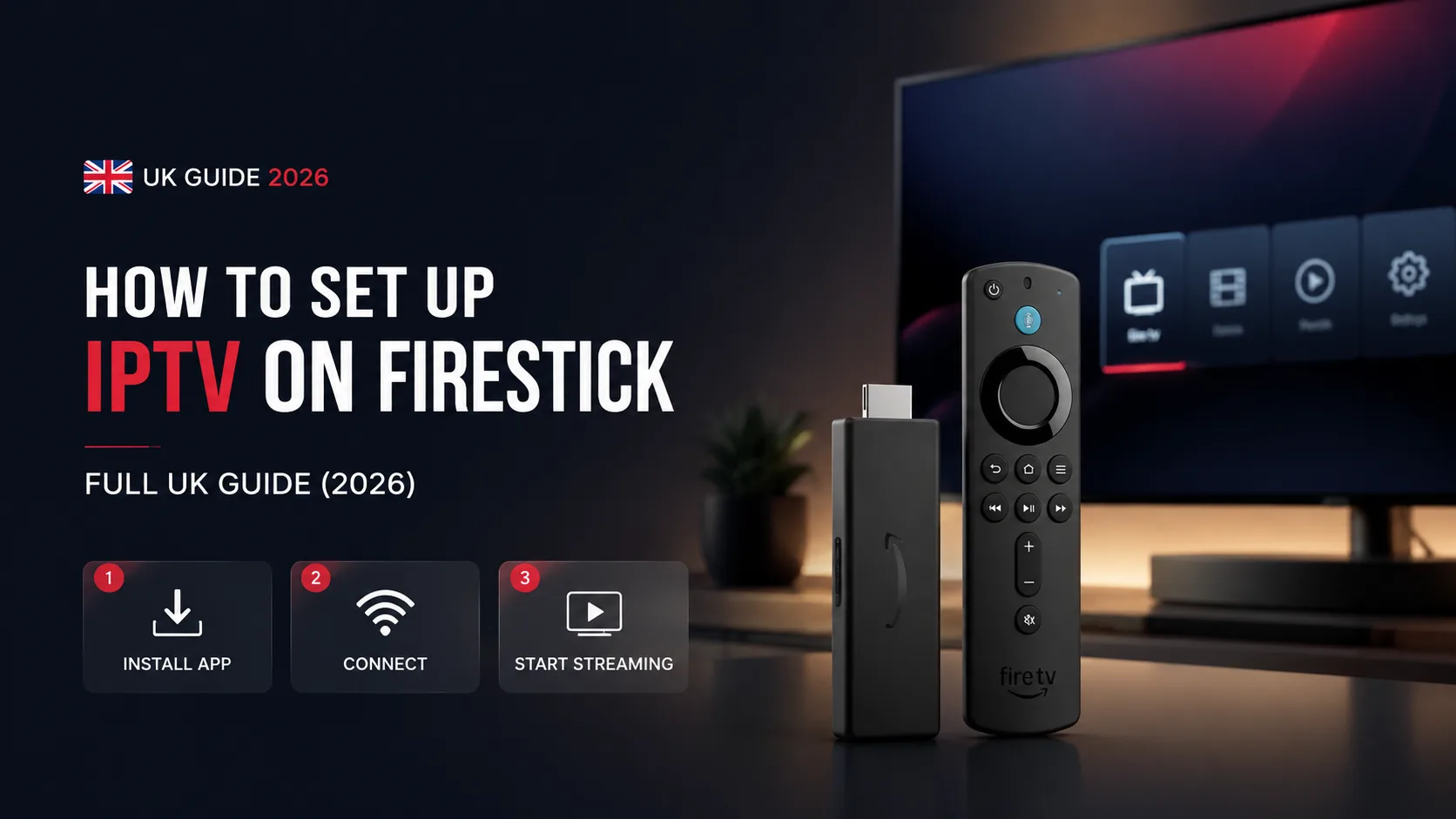
Step-by-step instructions to install and configure IPTV UK directly on your Samsung, LG or Sony Smart TV — no extra box needed.
A Smart TV is the simplest way to run IPTV UK — no Firestick, no extra remote, nothing plugged into the back of the TV. Here's exactly how to get set up on Samsung, LG and Sony models.
Before you start
- An active IPTV subscription (your login details arrive by email instantly)
- A Samsung, LG or Sony Smart TV connected to Wi-Fi or Ethernet
- A stable internet connection — 15 Mbps or higher for 4K
Step 1 — Open your TV's app store
Every Smart TV has a built-in app store: Samsung TVs use Smart Hub, LG TVs use the LG Content Store, and Sony TVs run the Google Play Store through Android TV or Google TV. Find it from your home screen — it's usually a shop or store icon in the top row of apps.
Step 2 — Install an IPTV player app
Search for 'IPTV Smarters' or 'Smarters Player Lite' and install it. On Sony (Android TV), it's a straightforward Play Store install. On Samsung and LG, availability varies by region and model — if it isn't listed, install 'Downloader' from the app store instead and use it to sideload the Smarters APK from a direct link.
Step 3 — Enter your login details
Open the app, choose 'Login with Xtream Codes API', then enter the username, password, and server URL from your activation email. The channel list — 30,000+ channels and the full EPG — populates automatically within a few seconds.
Step 4 — Start watching
That's it — your channels, movies, and series are ready to go. Pin your favourites for quick access from the home screen, all without a single extra box or cable.
Samsung vs LG vs Sony — what's different
- Samsung (Tizen) — widest TV market share, but the app store is the most restrictive; sideloading via Downloader is common
- LG (webOS) — similar to Samsung, smooth interface, sideloading sometimes needed on older models
- Sony (Android TV / Google TV) — full Play Store access, the easiest of the three to set up directly
No extra box, no extra remote — your Smart TV is all the hardware you need for IPTV UK.
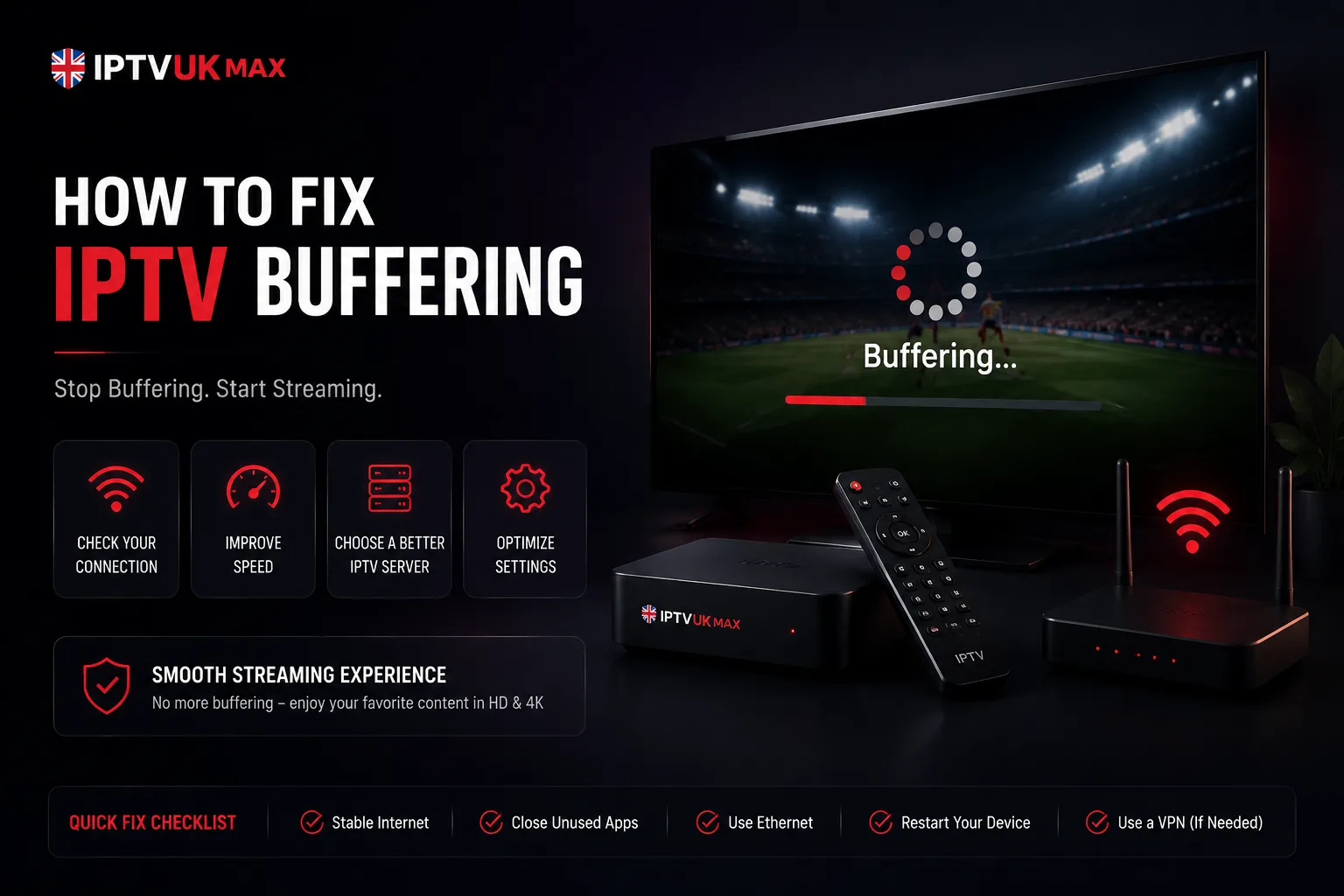
Buffering on Smart TV? Try this
- Use 5GHz Wi-Fi instead of 2.4GHz, or connect via Ethernet if your TV has a port
- Clear the app cache from your TV's app settings menu
- Close other background apps running on the TV
- Enable the built-in VPN to stop ISP throttling during peak hours
Not sure which app or settings to use?
Our UK support team will walk you through Smart TV setup live on WhatsApp, free, usually in under five minutes.
Get 30,000+ UK channels from £4/month
Instant activation, zero buffering, 7-day money-back guarantee.